Troubleshooting: Arbyn Isn't Replying to Emails, What to Check First
When Arbyn isn't replying to emails, the fix is almost always in your email forwarding settings; this guide walks you through what to check first.

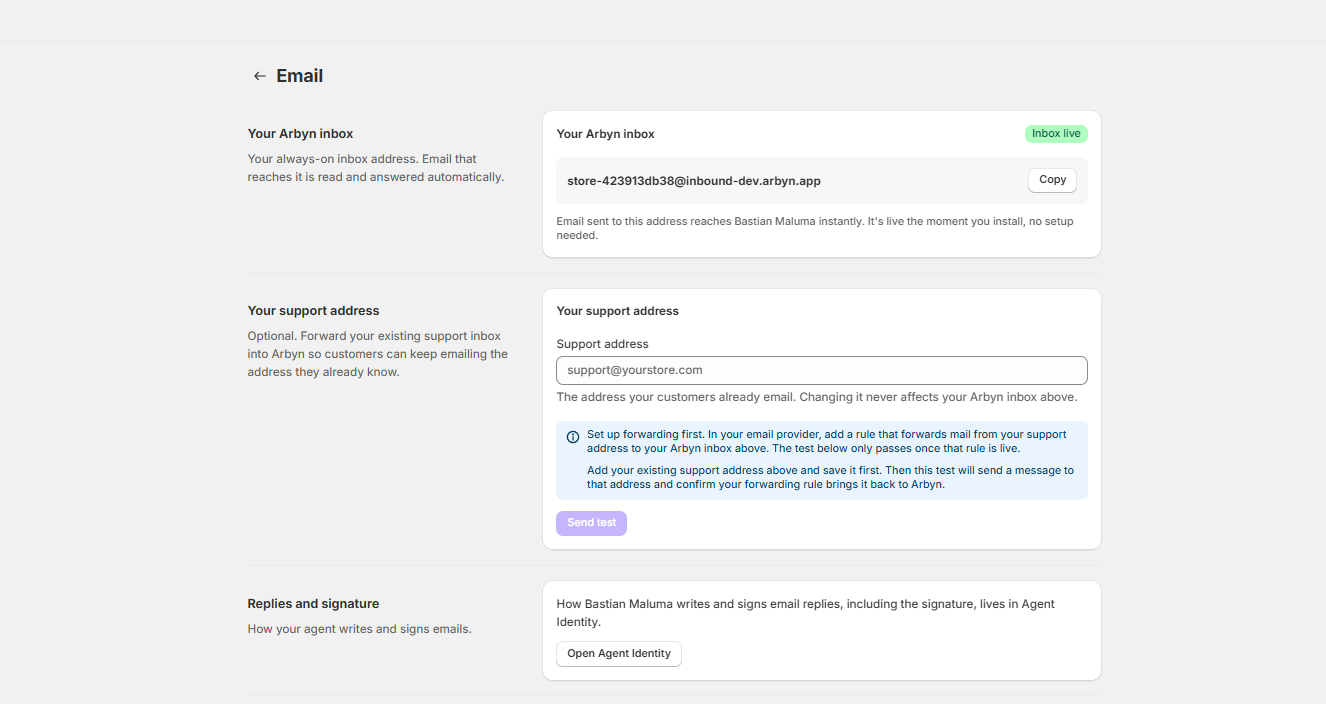
An email from a customer that goes unanswered is a critical failure, representing far more than just a missed message; it's a fissure in the customer relationship that can quickly turn into a permanent fracture. In fact, poor customer service is a primary driver for customer churn, with some research indicating that 72% of consumers will switch to a competitor after just one negative interaction. For many brands, a single unanswered email about a broken item or a delayed shipment is enough to lose that customer for good. The financial impact is not trivial; it includes their potential future value, which can average between $100 and $300 for many ecommerce stores, and a healthy business should aim for a lifetime value to acquisition cost ratio of 3:1 or better. When that initial email never makes it to Arbyn in the first place, it can feel like the app itself is broken, creating a frustrating mystery for the store owner. But Arbyn’s connection to your support inbox is built on a simple, durable mechanism: an email forwarding rule. This is the same core technology services have used for decades to reliably redirect mail, much like setting up a change of address at the post office where mail is rerouted unopened. This directness is a strength, but it means that when you're troubleshooting why Arbyn isn't replying to emails, the investigation starts not in Arbyn, but in the settings of your own support mailbox.
A Four-Step Checklist for Restoring Email Flow
When an email fails to appear in Arbyn, the chain of events is broken at some point between the customer hitting send and the message arriving at your unique Arbyn address. Think of it as a diagnostic sequence, similar to how a doctor checks a patient's vital signs in a specific order before escalating to more complex tests. A doctor does not order an MRI for a common headache without first checking temperature and blood pressure; similarly, you should not assume a complex server issue before checking the most basic settings. Following these steps methodically is the fastest way to find and fix the break. The cause is almost always a misconfiguration in one of four places, and for a busy store owner, spending five minutes on this process is far more efficient than waiting hours or even a full day for a support response. There is no point inspecting spam filters (Step 3), for example, if the forwarding rule itself is pointing to the wrong address (Step 1), as the email would never reach the mailbox to be filtered in the first place. This is the digital equivalent of checking if the mail carrier has the right street address before you worry if the front door is locked.
1. Confirm Your Unique Arbyn Forwarding Address
Every Arbyn store has a unique, private email address used to receive forwarded messages. It looks something like your-store-name-123@r.arbyn.app. This address is the specific, unchangeable destination for the forwarding rule you set up in your main support mailbox (e.g., support@yourstore.com). The very first step is to ensure the rule you created is pointing to the correct address, as even a single incorrect character will cause the forward to fail silently. An accidental typo like `-132` instead of `-123`, a transposed number, or a common mistake like typing `.com` instead of `.app`, will send customer emails into a digital void. Unlike a typo in an email you send manually, a bad forwarding address from an automated rule rarely generates a bounce-back or error message. The email simply vanishes because your server fulfilled its duty to forward, but the destination server had no valid recipient and no context to report an error back to the original sender. To perform this crucial ten-second check, log into your Arbyn account, find your unique forwarding address in the settings, and use the "Copy" button to grab the full, exact text. Then, paste it directly into your mail host's forwarding rule settings for a perfect match, eliminating any chance of human error. This is the digital equivalent of confirming the street address is perfect before sending a valuable package.
2. Inspect the Forwarding Rule in Your Mail Host
This is the most common point of failure and the engine of your connection to Arbyn. The forwarding rule must be active and correctly configured within the email account your customers write to, such as your Gmail or Outlook account. This rule is a simple command telling your inbox, "When a new message arrives, immediately send a copy to this other address." A disabled or misconfigured rule is the number one reason emails fail to reach Arbyn, often getting turned off accidentally during routine account maintenance or by a well-meaning team member who does not understand its function. For instance, a new marketing assistant might see the rule, assume it is a security risk, and disable it, instantly cutting off all inbound customer emails without anyone realizing it until complaints surface elsewhere. The setup process varies slightly by provider, so it is important to check the specific settings for your mail host, as the location and terminology can differ significantly. This rule is the gear that transfers motion from your inbox to Arbyn; if it's disengaged, the entire support automation system cannot function, no matter how well-configured the rest of the system may be.
- For Gmail / Google Workspace: While Gmail holds between 27% and 30.7% of email client market share, its setup process has specific steps that can be missed. Log into the exact Gmail account that receives customer emails, which is a common store owner error; setting the rule on `owner@yourstore.com` when customers write to `support@yourstore.com` will not work. You must be logged in as the `support@` user. Go to Settings > See all settings > Forwarding and POP/IMAP. In the "Forwarding" section, confirm that "Forward a copy of incoming mail to" is selected and your unique Arbyn address is the destination. If it's disabled or pointing elsewhere, this is the root of the problem. Also, Gmail requires you to verify any new forwarding address for security. Arbyn’s system is built to handle this verification automatically by receiving the confirmation email and self-activating, but if you ever disable and then re-enable the rule, Gmail's security protocol may require a new verification step, which you can re-initiate from this same settings page to restore the connection.
- For Outlook / Microsoft 365: Microsoft 365 is a dominant platform, with North America having the largest installed base of its enterprise users. In Outlook on the web, go to Settings > Mail > Forwarding. Ensure the "Enable forwarding" option is toggled on and that the correct Arbyn address is in the "Forward my email to" field. Be aware that Outlook offers two ways to forward: this main setting and a more granular system via Settings > Mail > Rules. A rule can be more powerful but also adds complexity and is a frequent source of error. For instance, a store owner might create a rule that only forwards messages containing the word "order," which will prevent all other support queries about shipping, returns, or product questions from ever reaching Arbyn. Another disastrous rule could be to forward only messages from known contacts, blocking all new customers. For maximum reliability, using the main, global forwarding setting is strongly recommended over a custom rule for this purpose.
A special note for Shopify domain forwarding: This specific step applies if you use a custom domain purchased through Shopify and use their built-in email forwarding feature under Settings > Domains. Here, you can create an address like support@yourstore.com and have it forward directly to your unique Arbyn address. It's crucial to also add Shopify's SPF record to your domain's DNS settings. This TXT record, v=spf1 include:shops.shopify.com ~all, authorizes Shopify's servers to send email on your domain's behalf. Think of it as an ID card for your email; without it, receiving servers like Arbyn's may view the forwarded message as a forgery and send it to spam. You must add this TXT record wherever you manage your domain's DNS settings, which is often an external service like GoDaddy, Cloudflare, or Namecheap, not within Shopify itself. This step is key in preventing forwarded messages from being marked as spam.
3. Check Your Original Inbox's Spam Folder
Most email forwarding rules, by design, do not apply to messages that have already been filtered into the spam or junk folder. This is a protective measure by providers like Google and Microsoft to prevent the automatic propagation of malicious emails across their systems. However, spam filters are imperfect; even legitimate emails are sometimes incorrectly flagged. With some reports showing that over 32% of all emails land in spam folders, even a low false positive rate can impact a high volume of messages. A customer's email, especially from a new sender, one with "spammy" words like "guaranteed," or one with multiple attachments, might be flagged by your own provider before it ever gets a chance to be forwarded to Arbyn. As a store owner, you must periodically check the spam folder of your primary support mailbox (e.g., support@yourstore.com). This should be a daily routine, taking only a minute to scan for legitimate customer names or subjects. If you find legitimate customer emails there, mark them as "Not Spam." This action not only helps train your spam filter to be more accurate over time but also immediately triggers the forwarding rule for that specific message, sending it to Arbyn. This is a critical best practice for any business inbox, not just for Arbyn users, as it uncovers legitimate inquiries that would have otherwise been lost forever.
4. Understand Advanced Delivery Failures (SPF & DKIM)
This is a less common, but more complex, reason for failure related to modern email authentication. Standards like SPF (Sender Policy Framework) and DMARC are designed to prevent email spoofing, but the act of forwarding can sometimes interfere with them. SPF works by creating a public list of servers authorized to send email for a domain. When your server forwards a customer's email, it is like putting their letter in a new envelope with your return address. To the final recipient (Arbyn), this can look suspicious if the original sender has a strict authentication policy. For example, an email from `employee@bigbank.com` might have a policy that says "only accept mail sent directly from BigBank's own servers." When your Gmail account forwards it, Arbyn's server sees the email coming from a Google IP, which fails the check and can cause the message to be rejected. While the DKIM signature standard is more resilient to simple forwarding, it can break if any content is altered in transit. You typically don't need to do anything here, as modern mail systems are designed to handle this, often using newer standards like Authenticated Received Chain (ARC) to preserve authentication results across hops. However, if a specific customer, often from a large corporate or government domain, consistently has their emails dropped, it could be due to a strict `p=reject` DMARC policy on their end clashing with the forwarding process. This is rare, but it helps to understand that the email delivery landscape is complex.
Why a Forwarding Rule is a Feature, Not a Flaw
It might seem counterintuitive for a modern application to rely on something as fundamental as email forwarding. Other tools may ask for your direct mailbox password or use complex API connections that require ongoing maintenance. The forwarding rule approach was a deliberate design choice to create a more robust, secure, and user-controlled connection. You never have to give Arbyn your email password, which avoids a massive security risk. Handing over credentials to third-party apps can expose your business to data breaches if that vendor is compromised, a significant risk highlighted by the fact that 35.5% of recorded breaches in 2024 were linked to third-party compromises. A compromised app with full password access could read, send, and even delete your entire support history. Furthermore, the connection doesn't rely on an API token that can expire or be revoked when a provider updates their system, creating fewer points of failure and less maintenance for the store owner. The underlying email protocol, SMTP, has been stable for decades, unlike APIs that can be deprecated and break integrations overnight. You remain in full control of your primary support mailbox. This simple, one-way push of information is less brittle and easier to troubleshoot than a two-way sync. The logic is straightforward: if your email provider receives the message, and your forwarding rule is active, the message will arrive at Arbyn with the near-perfect reliability of core internet protocols that have powered email for decades.
We chose a forwarding rule because it's the most durable, universal connection for email. It doesn't rely on passwords or APIs that can break. You control the connection, and that makes it fundamentally more reliable.
Fixing the inbound email flow is the first and most critical step. An AI agent's effectiveness is directly tied to the quality and consistency of the data it receives; a broken connection starves it of the context needed to resolve customer issues. Think of it as an assembly line where the customer email is the raw material. This material isn't just a block of text; it contains crucial components like the customer's order number, their sentiment, their purchase history, and the specific product in question. If these materials never arrive at the start of the line, the sophisticated machinery further down is rendered useless. If a customer's second email in a conversation arrives but the first did not, the agent lacks the initial context and may ask redundant questions, creating a frustrating experience. No finished product, like a resolved ticket or a satisfied customer, can come out the other end. Once your customer conversations are reliably entering Arbyn, the agent can get to work. It can instantly answer common questions like "Where is my order?", handle routine support requests, and even turn service conversations into sales opportunities. But none of that can happen until the connection is secure and the data is flowing consistently and completely.
Once you've confirmed your forwarding rule is active and correct, you've solved the most common issue in any Arbyn email troubleshooting process. For a store handling hundreds or thousands of emails a month, ensuring this simple connection is solid is one of the highest-leverage five-minute tasks a store owner can perform. The return on this small time investment is enormous, as preventing just one customer from churning due to a bad service experience can save hundreds of dollars in lost lifetime value. With customer messages flowing in correctly, you can let Arbyn handle the initial response and triage 24/7, improving key metrics like first-response time and overall customer satisfaction, which are vital for retention. If you've run through this entire checklist, verifying the forwarding address, inspecting the rule in your mail host, checking for false positives in spam, and considering sender-side authentication issues, and are still facing problems, our support team is here to help investigate deeper server-level logs. But for most store owners, a quick check of your Gmail or Outlook settings is all it takes to get things back on track. To see how Arbyn can transform your support once it's connected, you can install Arbyn free from the Shopify App Store and explore its full feature set.
Written by
For seven years I have led customer success and technical support inside high-growth SaaS and e-commerce companies. Customer Support Lead at DripShop.live, a live-commerce SaaS. Technical Support Specialist at Replo (Y...
View full profile